
How to Generate NSFW AI Videos with HackAIGC: 2026 Step-by-Step Guide
Most AI video tools won't let you create NSFW content. They block prompts, flag uploads, and refuse to generate anything remotely adult.
HackAIGC doesn't.
This guide walks you through everything you need to know to generate uncensored NSFW AI videos with HackAIGC — from subscribing to advanced prompt techniques. Whether you want text-to-video, image-to-video, or video extension, here's exactly how to do it.
What You Can Create with HackAIGC's Video Generator
HackAIGC offers three video generation modes with full customizable settings:

Customizable Settings
Every video generation lets you configure:
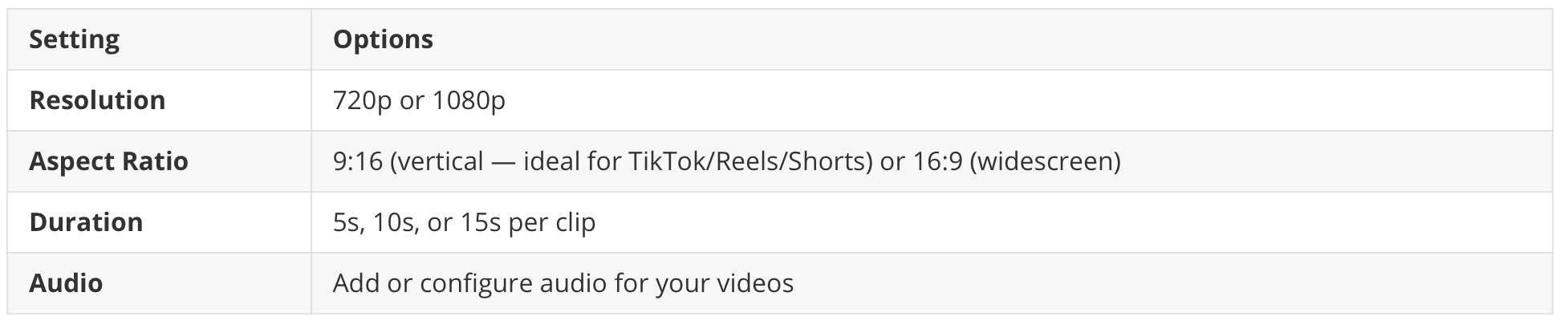
All modes support fully uncensored content — no filters, no moderation, no limits.
Step 1: Sign Up and Subscribe
HackAIGC's video generation features require a logged-in account with an active subscription. The free starter plan covers basic chat and image features, but video generation (text-to-video, image-to-video, and video extension) is available on the Premium plan at $20/month for 3,000 monthly credits.
Click "Try Now" or "Sign Up"
Sign in with your email (a magic link will be sent to your inbox) or use Google/GitHub OAuth
Navigate to the Pricing page and subscribe to the Premium plan ($20/month)
Once subscribed, navigate to the video generator — each model displays its credit cost on the product page, so you can see exactly how many credits each generation will use
Step 2: Generate a Video from Text (Text-to-Video)
The fastest way to create an NSFW AI video is with a text prompt.
From the dashboard, navigate to Text-to-Video mode
Configure your settings: resolution (720p or 1080p), aspect ratio (9:16 or 16:9), duration (5s/10s/15s), and audio
In the prompt box, describe the scene you want to generate
Click Generate — the credit cost for the selected model will be displayed on the button
Wait 30-60 seconds for the AI to render your video
Preview and download your result
Text Prompt Examples
Here are some prompt ideas to get started:
"A cinematic scene of a fantasy warrior walking through a misty forest at sunset, slow motion, dramatic lighting"
"Animated character dancing in a neon-lit cyberpunk club, vibrant colors, smooth motion"
"A dreamy underwater scene with glowing jellyfish and flowing hair, ethereal atmosphere"
Prompt tips for better results:
Be specific about motion: "slow motion", "fast-paced", "flowing", "exploding"
Describe lighting: "dramatic lighting", "neon glow", "soft daylight", "moonlit"
Match your aspect ratio: use "wide landscape" for 16:9 or "portrait close-up" for 9:16
Add style cues: "cinematic", "animated", "realistic", "fantasy art style"
Step 3: Turn an Image into a Video (Image-to-Video)
If you have a static image you want to animate, Image-to-Video is the feature you need.
Navigate to Image-to-Video mode
Upload your image (supports uncensored/NSFW images — no content filtering)
Configure your settings: resolution, aspect ratio, duration, and audio
(Optional) Add a text prompt describing how you want the scene to evolve
Click Generate — check the credit cost displayed for the model you're using
The AI analyzes the image content — characters, poses, environment, lighting — and generates an animated video
Preview and download
Best use cases for Image-to-Video:
Animate character illustrations and concept art
Turn a single photo into a short visual story
Add motion to AI-generated images
Create looping animated scenes from still artwork
Pro tip: Image-to-Video works best with images that have clear subjects and good contrast. Busy or very dark images may produce less coherent motion. For 9:16 output, use portrait-oriented images; for 16:9, use landscape-oriented images.
Step 4: Extend an Existing Video (Video Extension)
Already have a short clip? HackAIGC's AI video extension tool can add more frames.
Navigate to Video Extension mode
Upload your existing video clip
Choose your extension length: 5s, 10s, or 15s
Select your resolution and aspect ratio for the extended output
(Optional) Add a prompt describing what should happen in the extended portion
Click Generate — the credit cost will be shown on the product page
The AI analyzes your video and generates additional frames that match the style and motion
Download the extended video
When to use Video Extension:
You generated a 5-second clip and want it longer
You have existing footage that needs more runtime
You want to create seamless looping videos
You need to extend a clip for specific timing requirements
Step 5: Customize and Export Your Videos
HackAIGC gives you full control over your video output:
Before generating, configure these settings:
Resolution: 720p (faster, smaller files) or 1080p (higher quality)
Aspect ratio: 9:16 for vertical platforms (TikTok, Instagram Reels, YouTube Shorts) or 16:9 for widescreen (YouTube, desktop viewing)
Duration: 5s for quick loops, 10s for standard clips, 15s for longer scenes
Audio: Add background audio to match your video's mood
After generating:
Preview the result on the generation screen
If satisfied, click Download to save the video file (MP4 format)
If not satisfied, refine your prompt and try again
Use your videos however you want — HackAIGC doesn't watermark or restrict your content
Advanced Tips for Better NSFW AI Videos
Writing Better Prompts
The quality of your output depends heavily on your prompt. Follow these rules:
RuleExampleStart with the subject"A warrior woman with long red hair..."Describe the action"...walking through a burning battlefield, cape flowing in the wind..."Add atmosphere"...dramatic sunset lighting, smoke rising from the ground..."Specify style"...cinematic wide shot, 4K quality, photorealistic"Mention motion"...slow motion, particles floating in the air"Match aspect ratio"...wide landscape composition" (16:9) or "...portrait close-up" (9:16)
Credit & Pricing
Premium ($20/month): 3,000 credits/month = 100+ video generations
Each model displays its credit cost on the product page — different models may consume different amounts of credits
Credits do not roll over (use them within the month)
Video generation requires an active Premium subscription
Privacy Tips
HackAIGC is designed with privacy in mind:
Your prompts and uploaded images are not stored on the server
Generated videos are available for download and then cleared
No logs of your activity are kept
The platform uses end-to-end encryption for data in transit
For more details, check the privacy overview.
Common Questions
How long does it take to generate a video?
Most videos generate within 30-60 seconds. Text-to-video is typically the fastest, while image-to-video may take slightly longer depending on image complexity.
What video settings can I configure?
HackAIGC offers several customizable options for video generation:
Resolution: 720p or 1080p
Aspect ratio: 9:16 (vertical, ideal for TikTok/Reels) or 16:9 (widescreen)
Duration: 5s, 10s, or 15s per clip
Audio: Add or configure audio for your generated videos
Can I generate NSFW videos without a subscription?
Video generation requires a Premium subscription ($20/month). The free starter plan covers basic chat and image features but does not include video generation.
Can I use NSFW images as input?
Yes. Image-to-Video accepts any image, including NSFW content. There are no content filters on uploads.
What formats can I download?
Generated videos are available in standard web-compatible formats (MP4).
Can I use my videos commercially?
Yes. You own the content you generate with HackAIGC. There are no restrictions on how you use your videos.
Where can I see the credit cost?
Each model displays its credit cost on the product page. You can check the cost before generating to manage your credit usage effectively.
What's Next?
Now that you know how to generate NSFW AI videos, here are some ideas: